TL;DR
Open the interactive app in Gemini, choose Export, then Google Sites. Gemini creates a new, private site draft with the working app inside. Click Publish, pick a web address, then set "Published site" to Public or Restricted in Share. It's a real web page, but visitors can't comment, and outside editors need a Google Account.
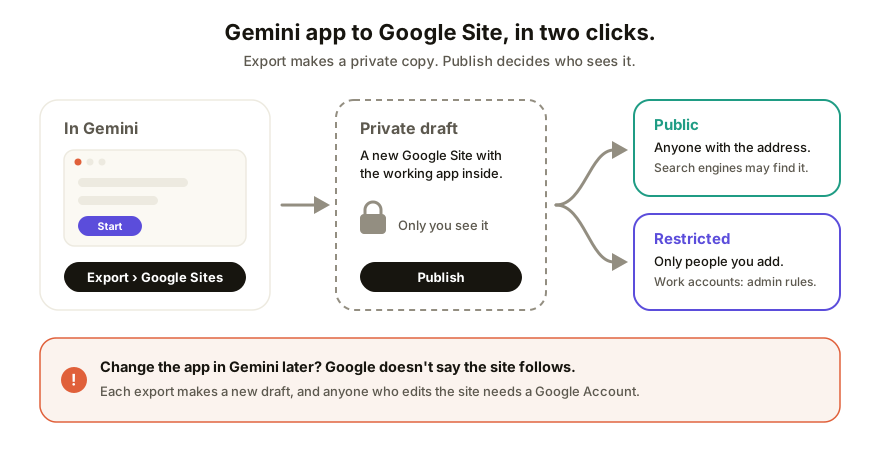
What Google shipped on October 19
On October 19, 2026, Google's Workspace Updates blog announced that an interactive app built in the Gemini app can be exported to Google Sites. One click makes a new, private site draft that holds the fully working app. From there you add whatever else you want on the page, publish it, and share it like any other Google Site.
Who gets it, per that post:
- Google Workspace customers, Workspace Individual subscribers, and personal Google accounts that have the Gemini app.
- Only if Google Sites is turned on for you and you're allowed to create and edit sites. At work or school that's your admin's call.
- Web, Android and iOS. There's no new admin switch: the site follows your organization's existing Sites and Drive policies.
This matters because until now the honest answer to "how do I put my Gemini app on a real website?" was "copy the HTML out and find a host." That's still a fine answer (it's Option 2 in our Gemini sharing guide), but Sites is now the zero-setup route if you already live in Google.
How to publish a Gemini app to Google Sites
- Open the Gemini chat with the interactive app (the quiz, calculator, tracker, whatever it built) and make sure it's the version you want. The export is a copy of what's there now.
- On the app, select Export, then Google Sites. Google Sites opens with a new site draft that has your app in it. Only you can see it so far.
- Give the site a name and add anything the app needs around it: a heading, a line of instructions, your contact details. Editing here doesn't touch the app in Gemini.
- Click Preview at the top and switch between the phone, tablet and desktop layouts. Click the app's buttons. If something only half works, fix it in Gemini and export again rather than fighting it in Sites.
- Click Publish, type a web address for the site, and click Publish again.
- Click Share. Next to "Published site," choose Public (anyone with the address) or Restricted (only the people and groups you add as published viewers). Click Save or Done.
- Open the address in a private browser window, signed out. That's what your visitor sees.
The publishing and sharing steps are from Google's Publish & share your site help page. Work and school accounts may see extra audience options there, so the exact menu can differ from ours.
Who can see the published site?
It depends on the "Published site" setting and on your account type.
- Personal Google account: Public means anyone with the address. Restricted means only the people and groups you add as published viewers.
- Work or school account: Google says you "may find other options," and those options are set by your admin, who may keep sites inside your organization. If a client says they hit a sign-in page, check that first.
- Search engines: a Public site can ask not to be listed, but Google's help page is blunt that this is a request and "doesn't guarantee that your site won't show up in public search engines." Don't put anything on a Public site you wouldn't want found.
What happens when you change the app in Gemini?
Google's announcement doesn't say, and that's the part to plan around. It describes the export as creating a new site draft. Nothing in it describes an existing site picking up later changes from Gemini.
So treat the site as a copy. In practice:
- If you tweak the app in Gemini next week, assume the live site doesn't change.
- Exporting again gives you a new draft, not an update to the published one. You'd move the new version into the old site yourself, or publish a second site and send a new address.
- Small fixes to the words around the app are easy in Sites. Fixes inside the app mean a round trip through Gemini.
For a one-off page that's fine. For a client deliverable that goes through four rounds of feedback, it's a lot of re-exporting.
What Google Sites does well, and where it stops
Sites is a good home for an app. It's free with a Google account, the site has real version history for its editors (More, then Version history, per Google's Find what's changed in a site), and the owner can connect up to five custom domains to one site under Settings, then Custom domains (Use a custom domain). Work and school accounts go through an admin for that.
Where it stops is collaboration with people outside Google.
| You need... | Google Sites | A collaboration link |
|---|---|---|
| A real web address for the app | Yes | Yes |
| A custom domain | Yes, owner sets it up, up to five per site | Yes, on paid plans |
| Visitors leave comments on the page | Not something we found in Google's current Sites help | Yes, pinned to the element |
| Someone without a Google Account edits it | No: they can view a draft with a code but not change it | Yes, if you allow it |
| Version history | Yes, for editors | Yes, human and agent edits in one timeline |
| Stays current when the app changes in Gemini | Not described; plan to re-export | You republish to the same link |
The editing row is from Google's Invite others to edit your site: editors who sign in with a non-Google account can see the draft (after a verification code) but can't change it. If your client uses Microsoft 365 and has never made a Google Account, they're a viewer, full stop.
Sites, a share link, or a collaboration link?
| The person on the other end needs to... | Use |
|---|---|
| Glance at what you made, today | Gemini's own share link (how that works) |
| Use the app on a proper website, inside Google's world | Export to Google Sites |
| Tell you what's wrong with a specific part of it | A collaboration link with pinned comments |
| Change the copy themselves, with no Google Account | A collaboration link with no-code editing |
| Get the same address through every round of changes | A host you republish to, or Sites with manual re-exports |
If you're not sure what the export actually contains, it's a web page: HTML, styling and script, the same thing Claude and ChatGPT hand you. Sites is one place to put it, not the only one.
How Coedit fits
Coedit is for the rows Sites leaves blank. Ask Gemini for the app as one self-contained HTML file, paste it into Coedit, and you get one link anyone can open with no account. Visitors pin comments to the exact button they mean, people you allow edit text and styling right on the page, and every change (yours, theirs, or an agent's) lands in one version history you can roll back. Republish to the same link when the app changes, and put it on your own domain on a paid plan. Coedit doesn't build the app. Gemini did. We're where the people who need to react to it can actually do that.
FAQ
Q: Where's the Export to Google Sites button in Gemini? A: On the interactive app itself: select Export, then Google Sites. Google's announcement says it's on web, Android and iOS. If you don't see it, Google Sites may be turned off for your account, or your admin may not let you create sites.
Q: Is the exported Google Site public? A: Not at first. The export makes a private draft that only you can see. It goes live when you click Publish, and who can open it depends on the "Published site" setting in Share: Public or Restricted to named people. Work and school accounts may be limited by an admin.
Q: If I change the app in Gemini, does the Google Site update? A: Google's announcement doesn't say so, and it describes each export as a new site draft. Plan on exporting again and moving the new version into your site, or use a host that lets you republish to the same link.
Q: Can people comment on a Gemini app published to Google Sites? A: We couldn't find a visitor comment feature in Google's current Sites help pages. Feedback will come back by email or chat, and you'll match it to the page yourself. For comments pinned to the part of the page they're about, use a collaboration link.
Q: Can I put my Gemini app on my own domain with Google Sites? A: Yes. The site owner can connect a custom domain under Settings, then Custom domains, up to five per site. On a work or school account your admin handles it. Google says DNS changes can take up to 48 hours.