TL;DR
Two real options. Use Gemini's built-in share to send a link to what you made: fastest, and its reach grew in 2026 (public links now work for Workspace accounts too, plus Drive-powered sharing and a Classroom attach), but it's a snapshot, tied to Google's interface. Or take the HTML out of the canvas and share the app as its own page: a couple more steps, but you get a normal web link that works for anyone, and it can be made commentable and editable. Choose by what the other person needs to do, look or work.
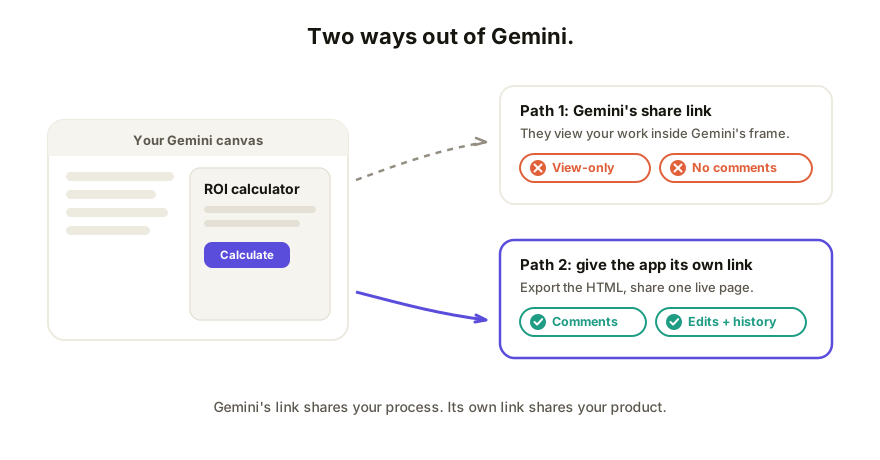
First: what Gemini actually made you
When Gemini builds something interactive in its canvas, a quiz, a tracker, a landing page, a small tool, the thing underneath is a web page: HTML, styling, and script in one document. That's the same format Claude artifacts and ChatGPT canvases produce, which is why the sharing logic here will feel familiar if you've read the tool-by-tool guide.
Knowing that changes how you think about sharing. You're not locked into Gemini's share button; you're holding a standard web page that can live anywhere.
Option 1: share it from Gemini
Gemini can produce a share link for what you've made in the canvas.
- Open the canvas with your app in it.
- Use the Share control and create a link.
- Send it.
What the other person gets: a quick look at the thing you made, without needing to have been in your chat. For "does this direction look right?" that's often enough. Google has been widening who this reaches, per its Workspace Updates blog: since March 2026 admins can turn on public-link sharing of Gemini conversations for Workspace (work/school) accounts, which had been personal-account-only (it's off by default); since June 2026 a separate Drive-powered path lets Workspace users share snapshots of chats, canvases, and generated media through the same sharing dialog as a Google Doc, governed by your Drive sharing policies; and in education, a canvas creation (a quiz, an infographic, a small site) can attach straight to a Google Classroom assignment with a "Share to Classroom" button.
The limits, honestly: wider reach, same shape of wall. Whichever path you use, you're sharing a snapshot (what you change afterward doesn't show up in it), and it's still Google-flavored: the person is looking at your work through Gemini's, Drive's, or Classroom's interface, not using a page of yours. They can't leave a comment pinned to the specific button that's wrong, they can't fix the typo themselves, there's no custom domain if this is client- or public-facing work, and their feedback arrives as a message you then apply by hand. Google keeps iterating on the exact controls and who-can-see rules, so check current admin settings before you rely on a specific one; the shape of the trade-off doesn't change.
Option 2: take the app out and give it its own link
If the app is meant to be used, by a client, your team, or the whole internet, get the HTML out:
- Export the code. Use the canvas's copy or download option for the code, or simply ask Gemini: "give me this as a single self-contained HTML file, all CSS and JavaScript inline."
- You now own a normal web page. (First time holding a loose HTML file? Start here.)
- Give it a home. A static host if people only need to see it; a collaboration tool if they need to respond. Either way you send one URL that opens on any device, no Google account involved.
The limits: more steps than pressing Share, and once the work leaves Gemini, updating it means exporting again, unless the place you host it keeps one stable link you republish to.
Which one, when
| The other person needs to... | Use |
|---|---|
| Glance at what you made | Gemini's share link |
| Use the app as intended, on any device | Export it, share its own link |
| Leave feedback on specific parts | A collaboration link |
| Edit it with you, without a Google account | A collaboration link |
Rule of thumb, same as for a ChatGPT canvas: the tool's link shares your process, its own link shares your product. Clients and teammates almost always want the product.
How Coedit fits
Coedit is the second option with the collaboration built in. Paste the HTML Gemini gave you and you get one live link that stays current as you republish. Viewers need no account, comments pin to the exact element they're about, non-coders can edit text and styling directly on the page, and every change, human or agent, lands in one version history with rollback. Gemini, Claude, ChatGPT, Lovable, v0, hand-written HTML: same flow, because Coedit collaborates on the page and never generates it.
FAQ
Q: Can someone edit my Gemini app from a share link? A: Not in your version. A Gemini share is a snapshot: the public link shows the chat as it was when you made it, and the Drive-powered share is described as a snapshot too. If they continue it, that's their copy, not shared editing. For actual collaboration, move the app to a tool built for it.
Q: Does the other person need a Google account to see my Gemini app? A: For a public Gemini link, no. Google's help page says no sign-in is needed to read one. Drive-powered shares follow your Drive sharing rules, which Google doesn't spell out for recipients, so test with someone outside your org. An exported page shared as its own link removes the question entirely: it's just a website.
Q: I have a Workspace (work or school) account. Can I share a public Gemini link? A: Yes, if your Workspace admin has turned it on. Google announced it on March 4, 2026: public links for Gemini conversations, once personal-account-only, now extend to Workspace accounts, off by default and controlled in the Admin console. The announcement talks about conversations and doesn't mention canvases, so check that your canvas shows up in the shared chat. It's a snapshot on Google's domain, so it doesn't replace a page with comments, editing, or your own branding.
Q: What's the Drive-powered sharing option in Gemini? A: A separate path, rolled out to Workspace on the web from June 3, 2026, that shares a snapshot of a chat, canvas, or generated media through the same dialog as Drive files. It's on by default and follows your Drive sharing policies, so if Drive can share outside your org, so can this. Convenient if your recipients already live in Drive permissions, but it's still a snapshot.
Q: How do I get the HTML out of Gemini? A: Copy or download the code from the canvas, or ask Gemini directly for "a single self-contained HTML file." Self-contained matters: it keeps images and styling inside the one file so nothing breaks in transit.
Q: My exported app looks different from Gemini's preview. Why? A: The preview may have been loading fonts or libraries from the internet that a loose file can't always reach the same way. Ask Gemini to inline everything, or host the page so all its pieces are served together.