TL;DR
You have two real options. Share the ChatGPT conversation link, which shows the other person a snapshot of your chat: fastest, but read-only and stuck inside ChatGPT. On a personal account anyone with the link can open it. On a Business, Enterprise or Edu workspace only members of your workspace can. Or take the content out of the canvas (copy or download it) and share it as its own page, which is more steps but gives you a normal link that works for anyone, and can be made editable. Pick based on whether the other person just needs to look, or needs to work on it.
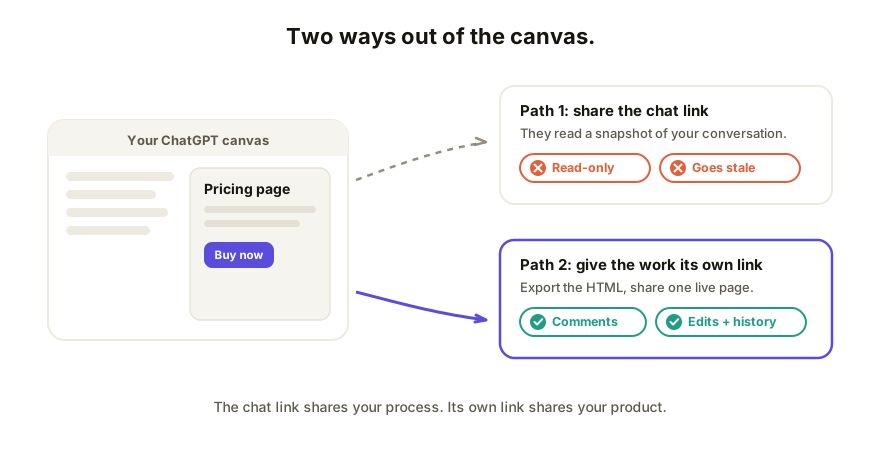
First: what a canvas is, and why sharing it is odd
Canvas is ChatGPT's side-by-side workspace: the chat stays on one side, and the document or code you're building sits in a panel next to it. It's great for making the thing. It's awkward for sharing the thing, because the canvas lives inside your conversation, and conversations are personal by design.
So the question "how do I share a canvas" really splits into two: do you want to share the conversation that contains it, or the work itself?
Option 1: share the conversation link
ChatGPT can create a link to a conversation. OpenAI's shared links help page lists conversation history, single responses, images and uploaded files as what a link can carry. It doesn't name canvas content, so check that your canvas shows in the preview before you send anything.
- Open the conversation that has your canvas.
- Select Share.
- Review the preview, then select Create link (or Copy link) and send it.
What the other person gets: a view of the chat as it stood when you made the link. On a personal account, anyone who has the link can view it. On a Business, Enterprise or Edu workspace, the link opens only for eligible members of the same workspace, so a client outside your company can't see it. That second case is the one that catches people out.
The limits, honestly: it's a snapshot of a conversation (on a personal account, later messages don't appear until you select Update link), not a working page. If the canvas holds a web page or an interactive tool, the recipient is looking at it through ChatGPT's interface rather than using it as a page. They can't comment on a specific part, can't edit, and if they have ChatGPT access and continue from your link, they're working on their own copy, not with you. Any feedback comes back as a message you then apply yourself.
Option 2: take the work out and share it as its own page
If the canvas contains something meant to be used (a page, a calculator, an interactive report), get it out of ChatGPT:
- In the canvas, copy the content or use the download option. For web-page canvases you want the HTML.
- If it's HTML, you now have a file that opens in any browser. (New to HTML files? Start here.)
- Share it as a link: put it on a static host, or paste it into a collaboration tool like Coedit and share the URL.
What the other person gets: a normal web link. It opens on any device, doesn't require them to squint through your chat history, and with a collaboration link they can comment on the exact element they mean or edit copy and styling themselves, no account needed to view or comment.
The limits: it's a couple more steps than pressing Share, and once the work leaves ChatGPT, updating it means exporting again, unless your sharing tool keeps one live link you re-publish to.
Which one, when
| The other person needs to... | Use |
|---|---|
| Glance at what you and ChatGPT made | Conversation share link |
| Use the page or tool as intended | Export it, share it as its own link |
| Leave feedback on specific parts | A collaboration link |
| Edit it with you, without a ChatGPT account | A collaboration link |
Rule of thumb: the chat link shares your process; a page link shares your product. Clients and teammates almost always want the product.
The same fork applies to Claude artifacts and Gemini apps; the buttons differ but the logic doesn't. There's a tool-by-tool guide if you work across several.
How Coedit fits
Coedit picks up where the export leaves off. Paste the canvas HTML in and you get one live link that stays current as you re-publish, where viewers need no account, comments pin to the element they're about, and non-coders can edit text and design directly. Every change, whether a person made it or an agent pushed it, lands in one version history you can roll back. ChatGPT, Claude, Gemini, Lovable, v0, hand-written HTML: same flow.
FAQ
Q: Can someone edit my ChatGPT canvas from a shared link? A: Not with you. A shared conversation is for viewing; someone who continues it gets a separate, private conversation in their own account, not a shared one. For actual shared editing, move the work to a tool built for collaboration.
Q: Does the other person need a ChatGPT account to see my canvas? A: OpenAI says anyone who has a personal-account link can view it, but its help page doesn't say whether viewing needs a sign-in, so test it in a private window. Workspace links are different: only members of that workspace can open them. To continue the chat, they need their own ChatGPT account. An exported page shared as a link has none of these conditions.
Q: How do I get the HTML out of a canvas? A: Use the canvas's copy or download option, or ask ChatGPT directly: "give me this as a single HTML file." You want one self-contained file so nothing breaks when it leaves.
Q: What happens to my share link when I keep working in ChatGPT? A: On a personal account the shared snapshot doesn't update by itself: you open the conversation, select Share, then Update link. A workspace link can pick up later messages instead. Either way there's no expiry date, so delete a link you no longer want live (Settings, Data controls, Shared links, Manage). If you'd rather have one URL that always shows the current version, share a live page instead.