TL;DR
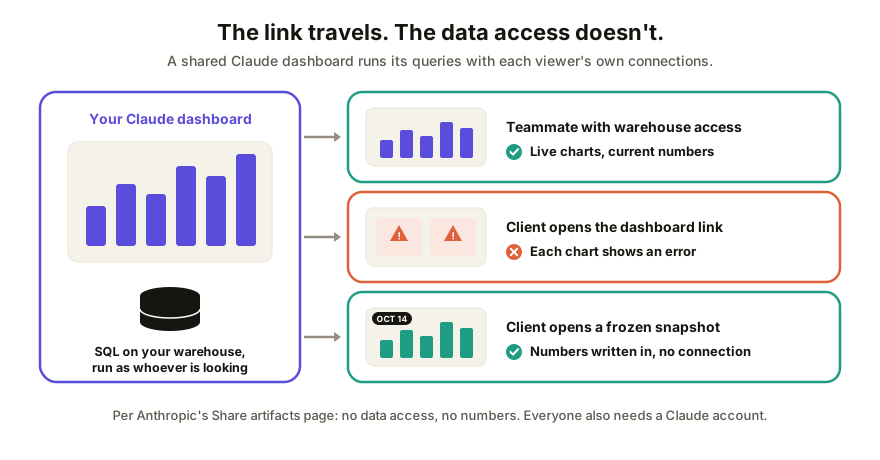
Open the dashboard, click "Share," add people or pick who has access, and copy the link. The catch: a shared Claude dashboard runs its queries with each viewer's own connections, so anyone without access to your warehouse sees an error where your numbers were. For a client, send a frozen snapshot with the numbers written in.
What a Claude dashboard actually is
Claude Dashboards launched in beta on October 8, 2026. You connect a data platform (Anthropic names Amazon Redshift, BigQuery, ClickHouse, Databricks and Snowflake) or an app you've already connected, like Salesforce, then ask a question in plain English. Claude writes a SQL query per chart, runs it, and builds the dashboard. Click any number and you see the query behind it, plus when that chart last refreshed.
Under the hood it's an artifact made from the Dashboards template, per Anthropic's Get started with Claude Dashboards page. That matters, because it means a dashboard follows the same sharing rules as every other Claude artifact. It's in beta on Pro, Max, Team and Enterprise. On Enterprise it's off until an owner turns it on in Organization settings > Artifacts.
How to share a Claude dashboard with your team
Dashboards start private to you. Sharing happens on the web or in Claude Desktop; the iOS and Android apps can't change sharing settings.
- Open the dashboard from the Artifacts tab and click "Share."
- On a Team or Enterprise plan, add people from your organization and choose each one's access level. The menu offers "Can view," "Commenter" and "Can edit," though Anthropic notes some artifact types offer only view or edit.
- Under "Who has access," pick the audience. Team and Enterprise get "Only people invited," "Anyone at [your organization]" or "Anyone with the link." Pro and Max get "Only you" or "Anyone with the link," plus invite by email.
- Copy the link and send it.
- Ask one viewer to open it while you're both looking. If a chart shows an error for them and not for you, read the next section before you send it to anyone else.
That's the whole flow, and inside a team that shares the same warehouse connection it works the way you'd hope: everyone sees the live numbers and editors can change it with you.
Why your viewers see errors instead of your numbers
This is the line in Anthropic's Share artifacts page that decides everything: "An artifact that pulls from connected apps uses the viewer's connections, not yours. If a viewer can't access a data source, that part of the artifact shows an error instead of your data."
A dashboard is nothing but queries against a connected source. So when you share one, you're not sharing your numbers. You're sharing the questions, and each viewer's own access answers them. A teammate with a Snowflake login sees the charts. Your CFO, who has never connected Claude to the warehouse, sees errors. A client sees errors every time.
Honestly, that's the right call from a security point of view. You wouldn't want a link to quietly hand your revenue table to whoever forwards it. But it means "share the dashboard" and "show someone the numbers" are two different jobs.
Can you share a Claude dashboard outside your company?
The two Anthropic pages we read don't fully agree yet, so check your own Share menu.
| What you want | What Anthropic's pages say |
|---|---|
| Teammates in your org with the same data access | Works: share to people or "Anyone at [your organization]" |
| Anyone with the link | The October 8 announcement says you can share dashboards "with anyone who has the link, if your admin allows it." The Share artifacts page (updated before the launch) says artifacts "that connect to your apps or use Claude can't use 'Anyone with the link.'" |
| A viewer with no Claude account | No. "Everyone needs a Claude account," except legacy artifacts published from a chat |
| Someone outside the org, invited by email | Allowed on most plans, but "parts of the artifact that use Claude or your connectors don't work for them" |
| Team and Enterprise plans | Outside sharing is off unless an Owner turns on External sharing (or allows that artifact) |
Even where an outside link is allowed, the viewer-access rule still applies. An outsider who can open the link still can't query your warehouse, so the charts that matter are the ones that break.
What to send a client instead: a frozen snapshot
When the reader is outside your data, give them the answer, not the query. A snapshot is a copy of the dashboard with today's numbers written into the page, so it opens anywhere and needs no connection.
- In the chat that built the dashboard, ask: "Make a self-contained HTML version of this dashboard with the current numbers written into the file, no live connections, CSS and JavaScript inline." That's a prompt, not a button. Anthropic's export list covers docs, decks, designs and animations, and we didn't find a documented dashboard export.
- Save the result as a file ending in
.htmland open it on your own machine first. Every chart should draw with no sign-in. (If something looks off, here's why AI HTML files break when shared.) - Check what's in it. The numbers are now in the file, so anyone with the link sees them. Keep it to what you'd paste into an email to that client.
- Put it on a link they can open without an account (the options for that are here), and write the snapshot date at the top so nobody mistakes it for live.
If the person needs to keep digging rather than read a result, Anthropic's other route is to send the dashboard to a BI tool (the announcement names Amplitude, Grafana, Hex, Mixpanel, Omni, Perplexity, PostHog and Sigma) and share from there, under that tool's own rules.
How Coedit fits
Coedit doesn't build dashboards and doesn't connect to your warehouse. It takes the snapshot HTML you already have, from Claude, ChatGPT, Gemini or anywhere, and turns it into one link your client opens with no account. They can leave comments pinned to the exact chart they're asking about, people you allow can fix a label or a note without code, and every update lands in one version history, so "the October numbers" and "the November numbers" stay separate and you can roll back. Keep the live dashboard in Claude for your team. Send the snapshot to everyone else.
FAQ
Q: How do I share a Claude dashboard? A: Open it from the Artifacts tab, click "Share," add people or choose who has access, and copy the link. Use Claude on the web or Claude Desktop, since the mobile apps can't change sharing settings. Have one viewer open it with you to check the charts load for them.
Q: Why does my shared Claude dashboard show errors for other people? A: Because the dashboard runs on each viewer's own connections, not yours. Anthropic's sharing page says that if a viewer can't access a data source, that part of the artifact "shows an error instead of your data." Teammates need their own access to the same warehouse or app.
Q: Can a client without a Claude account see my Claude dashboard? A: No. Anthropic's sharing page says everyone needs a Claude account to open a shared artifact, and a client wouldn't have access to your data source anyway. Send a frozen HTML snapshot with the numbers written in, on a link that needs no account.
Q: Can I export a Claude dashboard? A: Anthropic documents exports for docs, decks, designs and animations, and a route to send a dashboard to BI tools like Hex, Sigma or Grafana. We didn't find a documented dashboard file export, so ask Claude in the chat for a self-contained HTML version with the current numbers included.
Q: Who can use Claude Dashboards? A: It's in beta on Pro, Max, Team and Enterprise plans. On Enterprise it's off by default until an owner turns it on in Organization settings > Artifacts.