TL;DR
A Google AI Studio app is private until you act. You can share it with other AI Studio users (they see the code and can fork it), publish it to a Cloud Run link with Publish, or, for an Android build, run it on your own phone through Google Play. For anyone outside Google, the published link is the route.
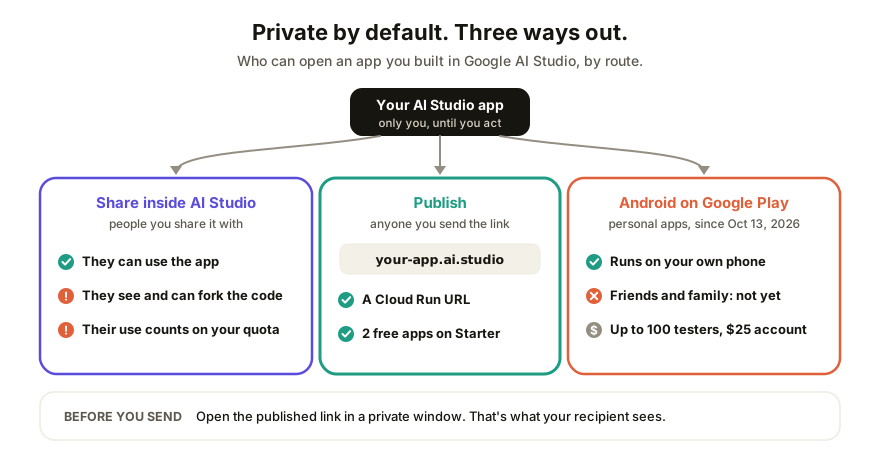
Who can open an AI Studio app by default?
Nobody but you. Google's Build mode docs say it plainly: "By default your app is private." That's the right default for something you're still poking at, and it's why the first link you copy out of your browser bar doesn't work for your colleague.
What you built is a real project, not a single page. AI Studio's Build mode makes a web front end (React by default) plus a Node.js runtime that makes the Gemini API calls, or a Kotlin and Jetpack Compose project if you asked for Android. That matters for sharing, because a project with a server half can't just be emailed as a file the way a Claude or ChatGPT page can.
The three ways to share it
| Route | Who can open it | What they get | Cost to you |
|---|---|---|---|
| Share inside AI Studio | People you share it with | The running app, plus its code; they can fork it, and edit it if you give edit permission | Their use counts toward your API usage limits |
| Publish to Cloud Run | Anyone you send the URL to | The running app at a Cloud Run URL, optionally your-app-name.ai.studio |
Free on the Starter Tier (up to two apps); otherwise a billed Cloud project |
| Android build on Google Play | Today, only you on your own phone | A private app, kept out of the public Play catalog | Free for personal apps; a $25 developer account for the testing route |
Two things in that table catch people out.
First, sharing inside AI Studio shares the code. The docs say people you share with "can see its code and fork it for their own purposes." Fine for a teammate. Less fine if the app is a client deliverable and the prompt work is what they're paying you for.
Second, whoever opens your app spends your quota. Shared apps count against your usage limits, and a published app "will use your API key for all users' Gemini API calls." AI Studio warns you before you share if the app could cost money, which is a warning worth reading rather than clicking through.
How to publish an AI Studio app to a public link
This is the route for a client, a stakeholder, or anyone who doesn't live in AI Studio.
- Open the app in AI Studio and click Publish in the top right corner.
- Click Get Started. The free Starter Tier needs no billing account; a standard deployment needs a linked Google Cloud project with billing turned on.
- Optionally pick a subdomain under
ai.studio, likespring-menu.ai.studio. Names are first come, first served. - Click Publish App. AI Studio gives you a Cloud Run URL for the live app.
- Open that URL in a private browser window where you're signed in to nothing, and click through the parts that call Gemini. If it works there, it'll work for the person you send it to.
- Send the link.
Step 5 isn't paranoia. Google's deployment page doesn't say in so many words whether a published app needs the visitor to sign in, so the private window is the only test that matches what your recipient will see.
The fine print from Google's deployment docs: the Starter Tier allows two published apps in a single region, and it isn't open to Google Workspace accounts or to accounts that have ever had a paid Google Cloud billing account. If you unpublish an app, its custom ai.studio name is released and someone else can claim it. So don't unpublish a link you've printed on anything.
Sharing an Android app you built in AI Studio
This changed on October 13, 2026. Google announced that personal apps made in AI Studio can be launched on your own device through Google Play with a standard Google account, no developer account needed. It's rolling out to people 18 and over in select markets, including the U.S., and the apps stay "separate from the public store catalog."
The sharing part hasn't shipped. Google's words: "In the coming months, you'll be able to share your personal apps with a close circle of friends and family." As of today, a personal app is for you.
If you need other people on it now, the Android docs describe the older route: publish to Google Play's internal testing track. You need a Play Developer account (a one-time $25 fee), AI Studio signs the build for you, and you get a link to send to up to 100 testers. AI Studio publishes to that internal track only; anything wider happens in the Play Console.
Honestly, for showing someone an idea, the web version is still the faster send. A link opens on any phone. An Android test build only opens on Android, after the tester joins your test.
Why does my shared AI Studio link show "403 Access Restricted"?
Google lists two causes. A privacy extension such as Privacy Badger can block the app, so ask the person to try with extensions off. Or the build is broken: ask the agent in AI Studio to "fix any build issues with the current code," then share the URL again.
If neither fixes it, check that you sent the URL AI Studio gave you after publishing, not the address of the AI Studio page you were building in.
Taking the code somewhere else
Two exits, both in the docs. You can download the project as a ZIP, or connect it to GitHub under Settings, then the GitHub tab, which syncs both ways. Either way you'll need to set a GEMINI_API_KEY environment variable wherever you host it, because the key doesn't travel with the code. If you've never deployed a project with a build step and a server, this is the point where it stops being a no-code job; the HTML-file route is the gentler option when the thing you need to share is just a page.
How Coedit fits
Coedit doesn't run AI Studio projects. There's no Node server and no Gemini key on our side, so a live app that calls Gemini belongs on its published Cloud Run link.
Where Coedit helps is the review round. Ask the AI Studio agent for a single self-contained HTML file of the current screens with sample data in place of the live calls, then paste it into Coedit. You get one link that opens with no account of any kind, comments pinned to the exact button or heading someone means, edits to copy and styling without touching code, and one version history for human and agent changes. Coedit never generates anything: AI Studio built the app, and Coedit is where the people who weren't in the prompt get to react to it. The same works for pages from Claude, ChatGPT, Gemini, Lovable or v0.
FAQ
Q: Can I share a Google AI Studio app with someone who doesn't use AI Studio? A: Yes. Click Publish, then Get Started, then Publish App, and send the Cloud Run URL. Sharing inside AI Studio is meant for other AI Studio users, who also get to see and fork your code. Test the published link in a private window first.
Q: Is publishing an AI Studio app free? A: On the Starter Tier, yes, for up to two apps in one region. Workspace accounts and accounts with a current or past paid Google Cloud billing account don't qualify and need a project with billing. Either way, visitors' Gemini calls use your API key.
Q: Can people I share my AI Studio app with see my code? A: Yes. Google's docs say people you share an app with can see its code and fork it, and with edit permission they can change it. If you only want them to use it, publish it and send the public link instead.
Q: Can I share an Android app from AI Studio with friends through Google Play? A: Not yet as a personal app. Since October 13, 2026 you can run it privately on your own phone, and Google says sharing with a close circle is coming "in the coming months." Today, the internal testing track (a $25 developer account, up to 100 testers) is the way.
Q: Why does my AI Studio app link say 403 Access Restricted? A: Google names two causes: a privacy browser extension blocking the app, or a build error. Have the person disable extensions, or ask the AI Studio agent to fix build issues and share again. Also check you sent the published URL, not the AI Studio page you build in.