TL;DR
To put an HTML file online, upload it to something that serves web pages, then send the URL you get back. You don't need to buy a domain, install anything, or write code. The three routes: drag it onto a free static host, paste it into a collaboration tool for a live link, or set up real hosting with your own domain. The first two take about a minute.
Why double-clicking it isn't "online"
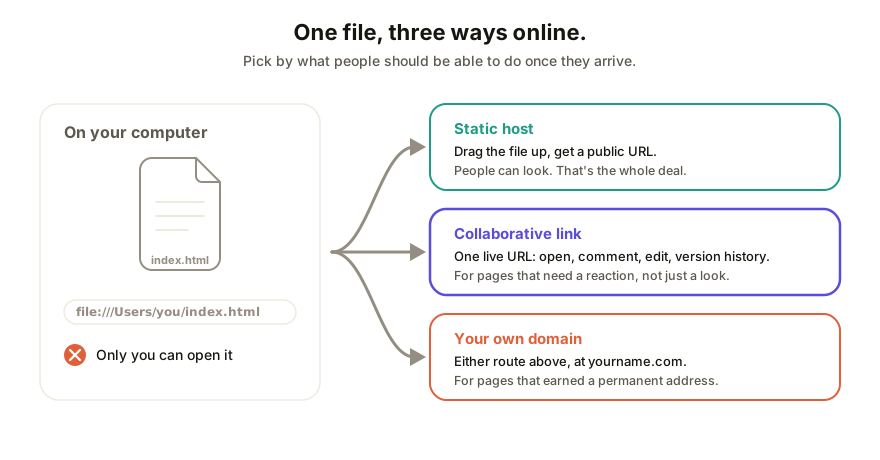
When you open an HTML file on your own computer, the browser reads it straight off your disk. The address bar says file:///Users/you/index.html, and that address means something only on your machine. Nobody else can visit it, and sending the file itself goes wrong in predictable ways: mail clients flag it, phones fumble it, and any images it loads from separate files stay behind on your computer.
"Online" means a server somewhere holds a copy and hands it to any browser that asks. Getting there is one upload. The real decision is which kind of upload, and that depends on what you want people to do with the page once they can open it.
Option 1: drag it onto a free static host
If the page just needs to be publicly viewable at a URL, a static host is the classic answer, and the simple ones are genuinely simple:
- Open a static host with drag-and-drop deploys. Netlify Drop is the no-signup classic; Vercel and Cloudflare Pages do the same job with a bit more setup.
- Drag your HTML file into the upload area. If the page uses images, stylesheets, or scripts stored as separate files, drag the whole folder so they come along.
- Wait a few seconds for the deploy to finish.
- Copy the URL it gives you. That link now opens your page on any device, like any other website.
The trade-offs are the ones you'd guess. The URL is a random subdomain (brave-panda-1c2f3.netlify.app) unless you connect a domain. Updating the page means dragging a new copy up and, on the no-signup tiers, sometimes a new URL. And the page is a one-way broadcast: people can look, but if you put it online to get a reaction, the reactions still come back by email and screenshot.
Option 2: turn it into a live, collaborative link
If the page is going online so people can respond to it, a review, edits, comments, a sign-off, then skip plain hosting and make the link itself the workspace. Paste the HTML into a tool like Coedit (or drop the file in) and you get a live URL where the other person can do more than look: open it with no account, comment pinned to the exact element they mean, and, if you allow it, edit text and styling directly without touching the code.
The updating story is the practical difference. A static host serves whatever you last uploaded; a collaborative link serves the living page, so when you fix a heading or apply someone's suggestion, the same URL shows the new version and the old ones stay in history. Nobody is ever looking at a stale copy.
Option 3: real hosting on your own domain
If this page is going to live somewhere long-term, a portfolio, a client microsite, a landing page, you'll eventually want it at yourname.com instead of a tool's subdomain. That's the same upload as option 1 plus a domain you buy (roughly $10 to $15 a year) and a DNS record pointing it at your host. Every static host from option 1 supports this, and collaborative links can carry a custom domain too: putting an AI-built app on your own domain walks through that version.
Don't start here for a first page. Get it online in a minute with option 1 or 2, see if the thing earns a permanent address, then connect the domain.
Which one should you use?
| Your situation | Best route |
|---|---|
| It just needs a public URL, viewing only | Static host (option 1) |
| People need to react: comments, edits, sign-off | Collaborative link (option 2) |
| You'll keep changing it after it's online | Collaborative link (one URL, always current) |
| It's permanent and needs your own domain | Option 1 or 2 with a domain connected |
One honest rule of thumb: pick by what happens after the page is online. If the answer is "nothing, people just look at it," a static host is perfect. If the answer involves other people's opinions, you want the link that can hold them.
How Coedit fits
Coedit is option 2, built out properly. It doesn't generate pages (your AI tool or your own hands already did that); it takes the HTML file you have and turns it into one live link with element-pinned comments, no-code editing, and version history across human and agent edits. Viewers and commenters need zero accounts. Zipped pages with images and fonts import whole, so nothing arrives broken. And it works the same whether the file came from Claude, ChatGPT, Gemini, Lovable, v0, or a text editor.
FAQ
Q: Can I put an HTML file online for free? A: Yes. Free static hosts (Netlify Drop, Cloudflare Pages, Vercel) and Coedit's free plan both serve your page at a real URL for nothing. You only pay when you want extras like your own domain.
Q: Do I need to buy a domain name first? A: No. Every route here gives you a working URL on their domain immediately. Buy a domain later if the page turns out to be permanent, and connect it then.
Q: My HTML file uses images and CSS stored as separate files. Will they break? A: They will if you upload the HTML file alone, because the page references files that didn't come with it. Upload the whole folder (or a zip of it) so everything travels together. There's a fuller explanation in why your AI's HTML file looks broken when you send it.
Q: Can I change the page after it's online? A: On a static host, yes, by uploading a new copy over the old one. On a collaborative link, the page is live: edits land on the same URL the moment you make them, and version history keeps every earlier state.
Q: Is my page private once it's online? A: Treat every route here as "public to anyone who has the link." Search engines won't list an unlinked page immediately, but the URL is not a lock. If the content is sensitive, use a tool with real access controls, like password-protected or invite-only links, before putting it up.