TL;DR
Open the canvas in Google Sheets on the web, click the publish icon in the canvas toolbar, then Publish canvas. Pick auto-republish (follows the sheet) or a static view (frozen now). The link has its own audience, separate from the spreadsheet's. One catch from Google's own help: the data still reaches the viewer's browser.
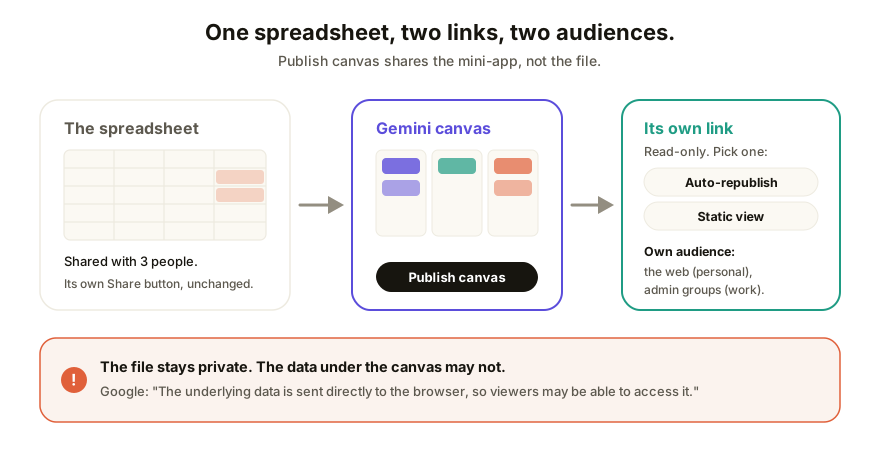
What changed on November 11
Sheets canvas is the Gemini feature that turns a spreadsheet into a small interactive app: a kanban board, a filterable schedule, a dashboard you can click. When Google launched it in August, a canvas "inherits the same sharing settings as your spreadsheet" (Workspace Updates, Aug 13, 2026). So if you wanted someone to see the board, you had to give them the sheet. Every column, every tab, every note you left yourself in cell Z400.
On November 11, 2026, Google added a way out: Publish a Sheets canvas as a standalone link. The published link "is separate from the spreadsheet URL and has its own audience setting," and gives people read-only access to the mini-app without sharing the source file. Google's own example: publish to your whole organization while the spreadsheet stays shared with a few people.
The details from that post:
- Who can publish: only someone with edit access to the spreadsheet.
- Plans: Business Standard and Plus, Enterprise Standard and Plus, Google AI Pro and Ultra (personal accounts), Google AI Pro for Education, and the AI Expanded Access add-on.
- Rollout: from November 11 on Rapid Release domains (up to 15 days to show up), from December 2 on Scheduled Release domains. If your work account doesn't have it yet, that's probably why.
- Where: Sheets on the web only. Not the phone app.
How to publish a Sheets canvas
- Open the spreadsheet in Sheets on a computer and go to the canvas tab. No canvas yet? Make one from Tools, then Create canvas, or Insert, then Create a canvas, and describe what you want to Gemini.
- Click the publish icon in the canvas toolbar.
- Click Publish canvas.
- Choose how it stays current: automatically republish whenever the source sheet changes, or publish a static view of the data as it is right now.
- Set the audience. Personal accounts can publish to the whole web. On a work or school account you pick from the audience groups your admin configured.
- Copy the link and open it in a private window, or ask a colleague who can't see the spreadsheet to open it. That's the version your audience gets.
- Come back to the same icon any time to copy the link again, change the audience, or stop publishing.
Steps 2 to 4 and 7 come from Google's announcement, and step 5 from the Create a Sheets canvas help page. Google doesn't name the icon, so look for the publish symbol on the canvas's own toolbar, not the spreadsheet's Share button. That one still shares the whole file.
Auto-republish or a static view?
This is the choice that actually matters, and it's easy to click past.
| Auto-republish | Static view | |
|---|---|---|
| What viewers see | The canvas with the sheet's current data | The data as it was when you published |
| When you fix a typo in the sheet | Viewers see the fix | Nothing changes until you publish again |
| When a teammate pastes in the wrong numbers | Viewers see those too | Viewers don't |
| Good for | A live team board, a schedule people check daily | A report you're signing off on, anything sent to a client |
Our take: anything that goes outside your team should be static. Auto-republish means every edit anyone makes to the sheet goes live without review, and the person who made the edit might not know the canvas is published at all.
Who can open a published canvas?
It depends on your account and your admin.
- Personal Google account (Google AI Pro or Ultra): the help page says "you can publish your canvas to the entire web."
- Work or school account: "Target audience groups configured by your administrator appear in the access dropdown menu." Google's general publish to the web page lists everyone on the web, everyone in your organization, or a group in your organization, depending on your settings.
- Admin switch: there's no new control for this. Canvas publishing "uses the existing Publish to the web capability," so if your admin turned off publishing files to the web in Drive, you can't publish a canvas either. In a shared drive, "Sharing with non-members" has to be on too.
What Google doesn't say anywhere we looked: whether someone opening a web-published canvas has to sign in to a Google account. Test it in a private window before you send the link to a client.
The data warning in Google's help
Here's the line worth reading twice. Google's help page says external viewers "cannot access your underlying spreadsheet file by default," and then: "The underlying data is sent directly to the browser, so viewers may be able to access it."
In plain terms: the canvas is a web page, and the page needs the data to draw the chart. Someone who opens the browser's developer tools can probably see the rows behind it, including columns the canvas doesn't display. Publishing the canvas hides the spreadsheet file. It doesn't promise to hide the data.
So before you publish to anyone outside your team:
- Copy the rows you want to show into a new spreadsheet, without the sensitive columns, and build the canvas there.
- Prefer the static view, so later edits to the source don't leak out.
- Never publish a canvas sitting on top of salaries, client contact details, or anything you'd mind seeing in a screenshot.
What a published canvas doesn't do
A published canvas is a read-only view. Google's help is clear that only people with edit access to the spreadsheet can change data in the canvas, and people with comment or view access "can't modify the canvas." Nothing in the announcement or the help page describes comments on a published canvas, version history for it, or a custom domain.
| The person on the other end needs to... | Published canvas | Other route |
|---|---|---|
| Look at the board and click around | Yes | |
| See the full spreadsheet | No, that's the point | Share the file in Drive |
| Point at a number and say "this is wrong" | Not described | A page with pinned comments |
| Get a page that never changes after sign-off | Yes, static view | |
| Fix a label themselves, without a Google account | No | A collaboration link with no-code editing |
| Open it on your own domain | Not described | A host with custom domains |
There are limits on the build side, too. The help page says canvas doesn't support source tabs over a combined 1 million cells, needs the file stored in Google Drive, works in English, and a personal Google account "might be able to use canvas and Build up to 3 times a month."
How Coedit fits
Coedit doesn't connect to Google Sheets and can't open a canvas directly. Where it fits is the client version of the page. Take the rows you're willing to share, ask whichever AI you use (Gemini, Claude, ChatGPT) for a self-contained HTML page of them, and paste that file into Coedit. You get a link anyone can open with no account, comments pinned to the exact number someone is questioning, no-code edits for people you allow, and one version history to roll back to. It's a frozen copy, which for a client is usually what you want. Keep the live canvas for your team. Coedit didn't build either one.
FAQ
Q: Does publishing a Sheets canvas share my spreadsheet? A: No. The published canvas has its own link and its own audience, and Google says external viewers can't open the underlying file by default. But the help page also says the data behind the canvas is sent to the viewer's browser, so treat everything the canvas reads as visible.
Q: Why don't I see the Publish canvas option? A: Three common reasons: you only have view or comment access to the spreadsheet (you need edit access), your work domain hasn't got the rollout yet (Scheduled Release starts December 2, 2026), or your admin has turned off publishing files to the web in Drive. It's also web only, so it won't show in the Sheets phone app.
Q: Does a published canvas update when the spreadsheet changes? A: Only if you picked automatic republishing when you published. The other option is a static view, which stays frozen at the data you had at that moment until you publish again.
Q: Can people comment on a published Sheets canvas? A: Google's announcement and help page don't describe comments on a published canvas. Viewers get read-only access. If you need feedback pinned to a specific part of the page, put a copy of it on a tool with page comments.
Q: Can I stop publishing a canvas later? A: Yes. Use the same publish icon in the canvas toolbar to copy the link, change the audience, or stop publishing at any time.