TL;DR
That code block is your page; it just hasn't been put in a container a browser can open. Copy the whole block, paste it into a plain text editor, save it as page.html, and double-click the file. Two minutes, nothing to install. Or skip the file step entirely: paste the code into a hosting or collaboration tool and get a link instead.
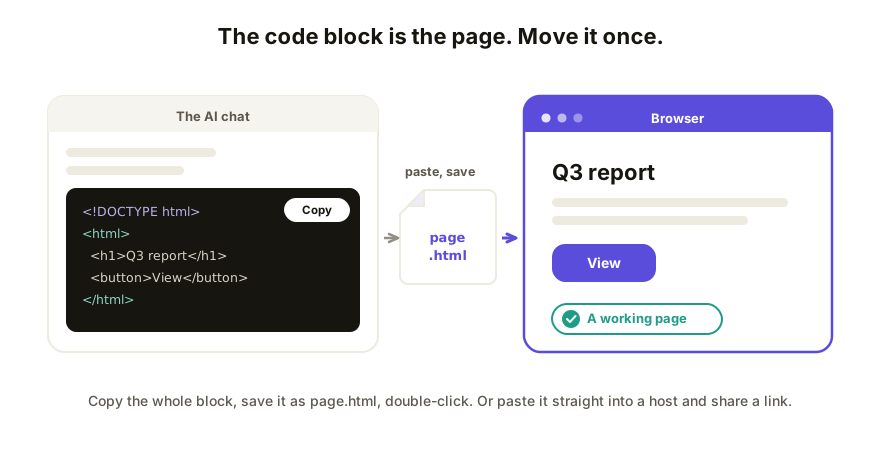
Why you got code instead of a file
Sometimes the AI hands you a tidy download button or a live preview panel. Sometimes it just prints a scrolling wall of angle brackets into the chat. Which one you get depends on the tool, the plan you're on, and how you phrased the ask. Claude tends to open an artifact panel, ChatGPT a canvas, Gemini a canvas of its own, but all of them will fall back to a plain code block in plenty of situations.
Here's the part that matters: nothing went wrong, and nothing is missing. If the block starts with something like <!DOCTYPE html> and ends with </html>, you're looking at a complete web page in its raw form. A browser reads that exact text and draws the page. You just need to get the text somewhere a browser can find it.
Turn the code block into a page
- Copy the whole block. Use the copy button in the corner of the code block rather than selecting by hand; a missed line at either end is the top cause of "it doesn't work."
- Open a plain text editor. Notepad on Windows. TextEdit on a Mac, but first go to Format → Make Plain Text, because rich text will quietly mangle the code.
- Paste.
- Save it as
page.html. In Notepad, set "Save as type" to All Files so it doesn't becomepage.html.txt. Keep the encoding as UTF-8. - Double-click the file. It opens in your browser as an actual page, not code.
If double-clicking shows you the code again instead of the page, the file most likely got saved with a hidden .txt on the end, or it opened in an editor instead of a browser. Right-click it, choose Open with, and pick any browser. (There's a longer walkthrough of that step if it's misbehaving.)
The four mistakes that break it
| What happened | Why the page won't show |
|---|---|
Saved as page.html.txt |
Windows hides extensions by default, so the .txt is invisible. Pick "All Files" when saving. |
| Pasted into Word or Google Docs | Word processors add invisible formatting and curl your quotes. Plain text editors only. |
| Copied part of the block | The page needs its whole structure, from <!DOCTYPE html> to </html>. Use the copy button. |
| TextEdit stayed in rich text mode | Same curly-quote problem. Format → Make Plain Text before pasting. |
One more check before you blame the code: if the block doesn't look like HTML at all (it starts with import or def or print), you have Python or some other language that needs more than a browser to run. Ask the AI to "make this a single self-contained HTML page instead" and you're back on the easy path.
You can skip the file entirely
The save-a-file route is fine for looking at the page yourself. But if the point is to send it to someone, the file is a detour: you'd make the file, then attach it, and then hit everything that goes wrong when HTML files travel.
The shorter route: paste the code straight into a tool that hosts it, and share the link it gives you. The page lives on the web, opens on any device, and there's no file on anyone's desktop to go stale. Next time, you can also just ask the AI up front: "give me this as a single self-contained HTML file" gets you a cleaner handoff from the start. What the file is and why AI tools produce it is its own explainer.
How Coedit fits
Coedit takes the paste-and-get-a-link route one step further. Paste the code the AI gave you and you get one live link where viewers need no account, comments pin to the exact element they're about, and non-coders can edit text and styling right on the page. Works the same whether the code came from Claude, ChatGPT, Gemini, Lovable, v0, or your own hands. Coedit never generates the page; it makes the page you already have shareable and collaborative.
FAQ
Q: ChatGPT gave me HTML code. How do I open it?
A: Copy the whole code block, paste it into a plain text editor (Notepad, or TextEdit in plain text mode), save the file as page.html, and double-click it. It opens in your browser as a normal page.
Q: Do I need to install anything to run the code? A: Not for HTML. Every computer already has the thing that runs it: a browser. If the code is Python or another language, that's different; ask the AI for a self-contained HTML version instead.
Q: I saved the file but it opens as text. Why?
A: It almost certainly got saved as page.html.txt (Windows hides the extension) or it's opening in an editor. Save again with "All Files" selected, then right-click and open with a browser.
Q: How do I know if the code block is a complete page?
A: Look at the first and last lines. A complete page starts with <!DOCTYPE html> (or <html>) and ends with </html>. If either end is missing, copy again with the block's copy button.
Q: What if I want someone else to see it, not just me? A: Skip the file and share a link. Paste the code into a hosting or collaboration tool and send the URL it gives you; that avoids the whole class of broken-attachment problems.