TL;DR
Phones can open HTML files, just grudgingly. On an iPhone, save the file to the Files app and tap it for a preview. On Android, tap the file and pick Chrome (or an HTML viewer) from the "Open with" list. Both give you a limited preview, and interactive pages often misbehave. The fix that works on every phone: put the page online and open it as a normal link instead of a file.
Why this is harder on a phone than a computer
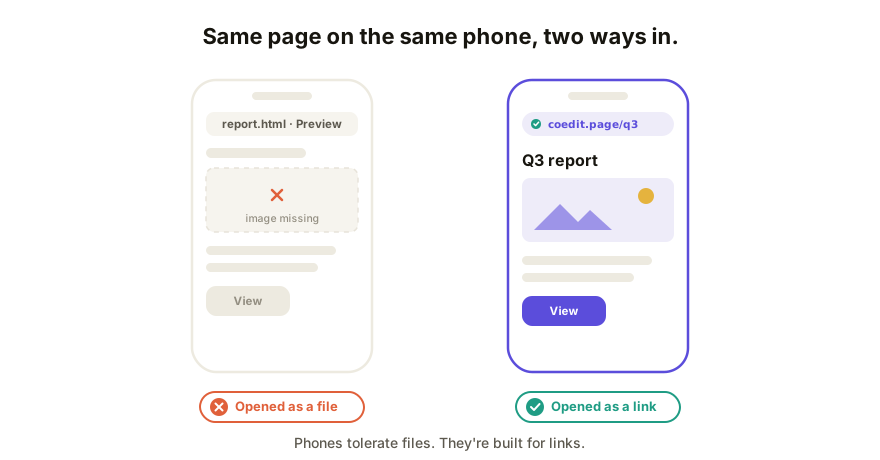
On a laptop, an HTML file is a double-click away from working: the browser opens it, done. Phones don't have that reflex. Mobile browsers are sandboxed away from your files, mail apps treat .html attachments with suspicion (it's a favorite phishing format, so they're cautious on purpose), and the built-in preview is a viewer, not a real browser tab.
So when your AI tool hands you a page as a file and you're on your phone, the file fights you. It can be opened; it just takes more taps than it should, and the result is often a downgraded version of the page.
On an iPhone
- Get the file into Files. From Mail, Messages, or a download: tap the attachment, then use the Share icon and Save to Files.
- Tap it in the Files app. iOS shows a preview of the page.
- Take stock of what you're seeing. For a simple, self-contained page (text, styling, images baked in), the preview is usually fine. For anything interactive, a calculator, a dashboard with buttons, a little app, the preview commonly strips or breaks the working parts.
There's no clean built-in "open this local file in Safari" on iOS. If the preview isn't good enough, that's your cue to stop fighting the file and use the link route below.
On an Android
- Download the file (or save the attachment), then find it with your file manager, Files by Google on most phones.
- Tap it and choose what opens it. You'll get an "Open with" choice: pick Chrome if it's offered, or the built-in HTML viewer if not. Exactly what appears varies by phone maker.
- Check the address bar. If it opened in Chrome you'll see a
file://address; the page is rendering locally.
Android is a bit friendlier than iOS here, but the same ceiling applies: pages that lean on separate files or the internet for images and styling will look broken, because the file traveled without its luggage.
The fix that works on every device
A phone is the native habitat of the link, not the file. Every phone opens a URL flawlessly in a real browser with zero taps of ceremony; that's the entire design of the web. So the durable fix is to stop moving the file around and give the page an address:
- On any computer (or in the AI tool itself), get the page's HTML. If all you have is a code block, here's how to handle that.
- Paste or upload it to a host or collaboration tool.
- Open the link on your phone. Send the same link to anyone else, on any device.
This also quietly solves the next three problems in the queue: the page renders whole (all its pieces served together), it works on the other person's phone too, and when the page changes, the link stays current instead of a stale file sitting in a message thread. The general version of that argument is in how to share an HTML file so anyone can open it.
How Coedit fits
Coedit turns the page your AI built into exactly that kind of link. Paste the HTML once and you get one live URL that opens in any phone's browser like a normal website. Viewers need no account, comments pin to the element they're about (taps work fine), and edits land in one version history. It works with pages from Claude, ChatGPT, Gemini, Lovable, v0, or hand-written HTML; Coedit collaborates on the page, it never generates one.
FAQ
Q: Why does the HTML file show code instead of a page on my phone? A: The app that grabbed it is treating it as text. Save it to your files, then open it from there so the system uses its HTML preview (iPhone) or offers Chrome (Android) instead of a text viewer.
Q: Can Safari open a local HTML file on an iPhone? A: Not directly; iOS has no built-in "open in Safari" for local files. You get the Files preview instead. If you need the page in a real browser, host it and open it as a link.
Q: The file opens but looks broken or unstyled. Why? A: The HTML probably references images or styles that live in other files, which didn't travel with it. Ask the AI for a single self-contained file, or share the page as a hosted link so everything is served together.
Q: The page has buttons and inputs. Will they work in a phone preview? A: Often not; file previews are viewers, not full browser tabs, and interactive parts are the first thing to break. Interactive pages are the strongest case for opening the page as a hosted link.